How to Deliver Digital Products Automatically After Payment
If every sale makes you check the payment, find the correct file and write another delivery email, your digital-product fulfilment is still manual. That may be manageable for the first few customers, but it also creates delays, repetitive work and avoidable messages from buyers asking where their purchase is.
The solution is a connected workflow that confirms the sale, identifies what the customer bought and sends the correct file or access instructions automatically. This guide shows how to deliver digital products automatically after payment with a simple setup that can be started on a free plan.
What Automatic Digital Product Delivery Actually Requires
Automatic delivery is more than attaching a PDF to an email. A dependable system needs to complete several connected jobs:
- Collect the customer’s payment and contact information
- Confirm that the payment was successfully processed
- Match the order to the correct product or access level
- Provide the file, download link or protected account access
- Send instructions the customer can find again later
- Give the customer a clear support route if delivery fails
A thank-you page can provide immediate access, but it should not be your only recovery method. Customers close browser tabs, mistype email addresses and sometimes need to download the product again. A recognizable confirmation email gives them a lasting route back to their purchase.
Choose the Right Delivery Method
The best method depends on what you sell. A five-page checklist does not need the same delivery system as a video course or a large template library.
| Product type | Recommended delivery | Important consideration |
|---|---|---|
| Small PDF, checklist or guide | Delivery email with file or link | Keep the message easy to recognize and retrieve |
| Large ZIP, video or asset pack | Hosted download link | Check sharing permissions and link reliability |
| Online course | Protected course access | Send login and password-creation instructions |
| Paid community | Automatic account access | Define what happens after cancellation or refund |
| Template hosted in another app | Delivery email with duplication/access link | Test the link in a logged-out browser |
For downloadable products, a link is often more practical than a direct attachment. It keeps the email smaller and makes it easier to replace an updated file. However, a permanently public link can be shared. Use protected course or community access when control matters more than a simple download.
Why Systeme.io Fits This Workflow
Systeme.io connects the order form, digital offer, payment event, email and customer record inside one platform. That removes the need to make a checkout tool, email provider and automation connector pass information between separate accounts.
- Purchase-based trigger: The official automation system includes a New sale trigger.
- Built-in delivery email: A successful purchase can trigger a message containing the file or access link.
- Native gated resources: Courses and communities can be granted as digital-product resources.
- Customer segmentation: A buyer tag or campaign can be added for onboarding and follow-up.
- Free starting point: Systeme.io’s current official product guide says the digital-product workflow can be built on its Free plan.
This makes Systeme.io a practical next step if you already know how to sell digital products without building a website and now want to remove manual fulfilment from the process.
How to Deliver Digital Products Automatically After Payment
The following setup uses an order-form sale to trigger a delivery email. Menu labels and limits can change, so compare the steps with the current official Help Center before publishing your funnel.
- Create the payment step. Open a sales funnel and add an order form if one does not already exist.
- Configure the digital offer. Select Digital product, name the offer, add the correct resource and create its price plan.
- Choose the delivery method. Use native course or community access, a small email file, or a tested hosted-download link.
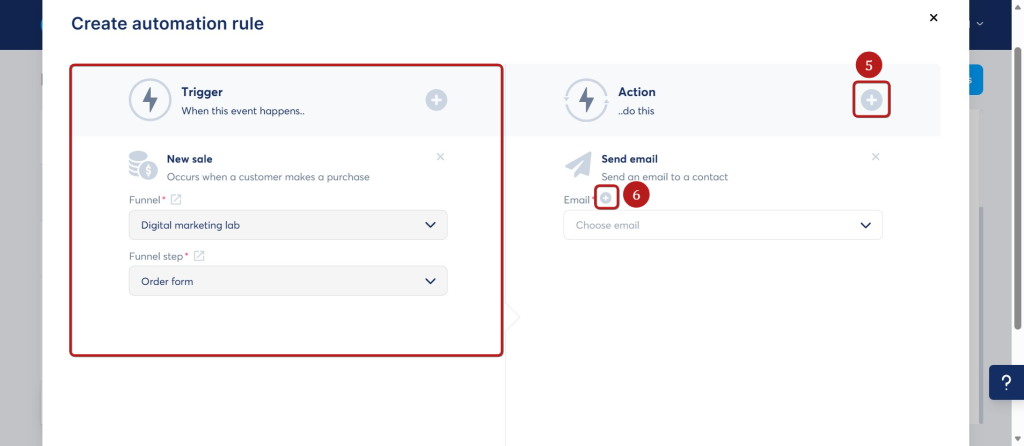
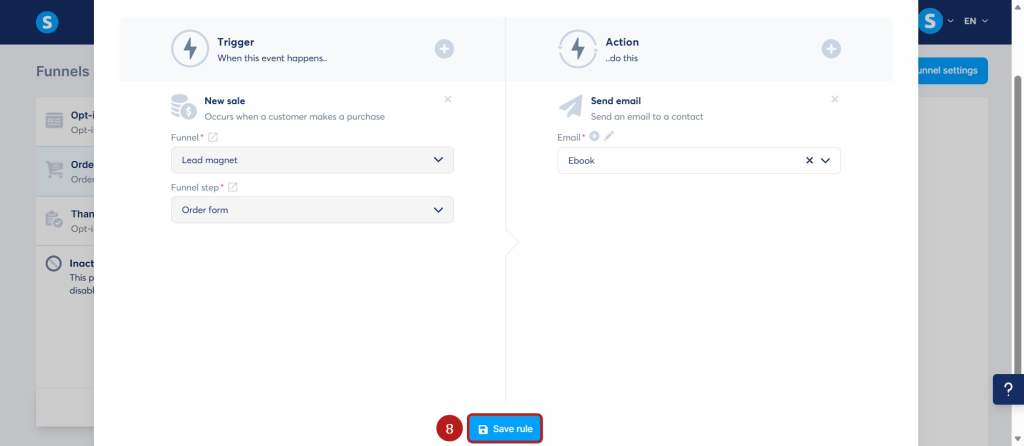
- Add the purchase automation. On the payment page, create an automation rule using New sale as the trigger.
- Create the delivery action. Add Send email, write the access instructions and attach or link the correct product.
- Add customer follow-up. Optionally assign a buyer tag or subscribe the customer to an onboarding campaign.
- Test the entire order. Complete a purchase, confirm the transaction and open every access link as a customer would.
Step 1: Create or Open the Order Form
Start inside the funnel that sells the product. If you still need the front-end page, follow the guide to create a landing page without a website, then add an Order form step to the funnel.
Choose a simple template and confirm that the product name, total price, payment button and required customer fields are clear. Delivery automation cannot repair a confusing checkout, so review the page on both desktop and mobile.
Step 2: Configure the Digital Product and Price
On the order-form configuration screen, choose Digital product. Create or select the product, then add the appropriate resource and price plan.
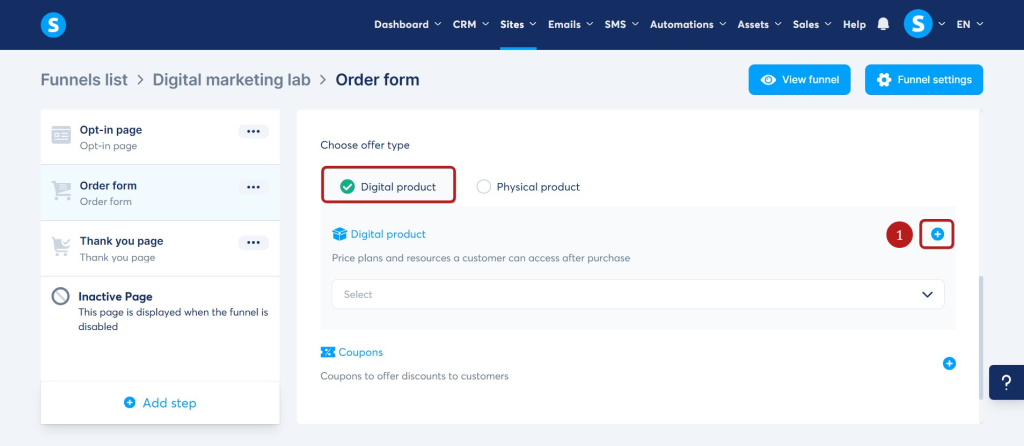
For a course or community, select that native resource so access can be granted automatically after payment. For a downloadable PDF, template or ZIP file, a customer tag can help identify the buyer before the delivery email runs.
Step 3: Add the New Sale Trigger
Open the payment page’s Automation Rules tab and add a rule. Select New sale as the trigger. This links the automation to a purchase rather than a general page visit or form submission.
Step 4: Create the Automatic Delivery Email
Add Send email as the action, then create the message. Use a subject line the buyer will recognize, such as “Your [Product Name] is ready.”
The email should state:
- What the customer purchased
- Where to download it or sign in
- Any first-use instructions
- What to do if the link does not work
- How to contact support
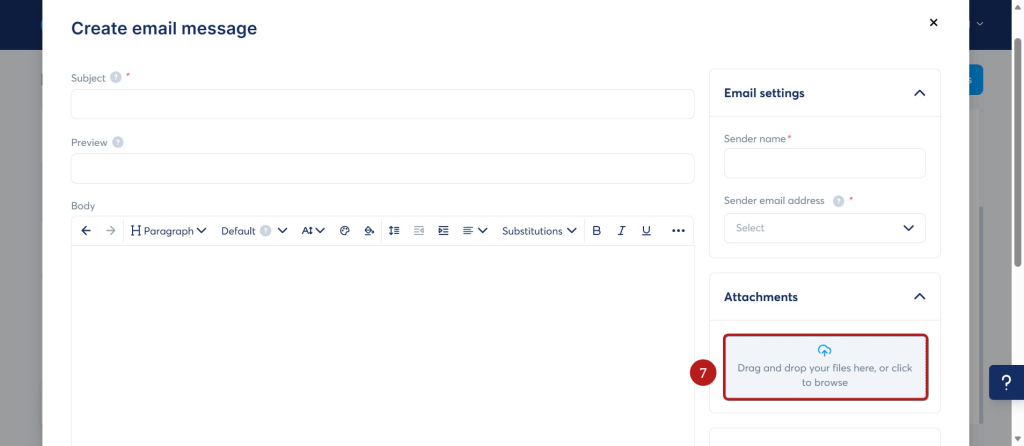
The current Systeme.io Help Center limits email attachments to 5 MB. It also explains that an uploaded attachment appears as a link at the end of the email to support deliverability. For a larger file, compress it or host it in an appropriate storage service and place the tested access link in the email.
Step 5: Save the Rule and Add Follow-Up
Save the email and the automation rule. The basic delivery can stop there, but a useful customer journey often needs one or two additional actions:
- Add a tag identifying the product purchased
- Subscribe the buyer to an onboarding campaign
- Send usage tips after the customer has had time to open the product
- Request feedback only after the buyer has had a fair opportunity to use it
Keep the first version small. Delivery, one useful onboarding email and a support route are more valuable than a complicated sequence that has not been tested.
Step 6: Test How to Deliver Digital Products Automatically After Payment
Systeme.io’s current Help Center states that a Stripe test purchase is not available for this procedure. It recommends making the purchase yourself and refunding it afterward. A low price such as $1 can reduce—but may not eliminate—third-party processing fees.
During the test, verify all of the following:
- The order completes and appears in the transaction record
- The delivery email reaches the inbox with the expected subject
- The message contains the correct product—not another offer’s file
- The download link works in a private or logged-out browser
- Course or community access opens for the purchasing account
- The buyer tag and campaign are applied once
- The support address and refund information are accurate
Repeat the test after changing the file, link permissions, price plan or automation. Automatic systems save work only after they have been proven reliable.
Common Automatic Delivery Mistakes
Using a Thank-You Page as the Only Delivery Route
The buyer may close the tab or need the product again later. Keep the thank-you-page link as a convenient immediate option, but send a retrievable email or provide protected account access as well.
Sending the Wrong File From a Shared Rule
Name products, tags, automation rules and emails clearly. A naming pattern such as Product — Delivery — New sale makes it easier to audit the workflow as the catalogue grows.
Forgetting File Permissions
A cloud link that works while you are logged in may fail for the customer. Test it in a private browser. Balance accessibility with protection: do not expose confidential files through a public folder.
Promising “Passive Income” Instead of Reliable Fulfilment
Automation removes repetitive sending, but products still require marketing, updates and support. The realistic benefit is a consistent customer experience and less manual administration—not a business that never needs attention.
Can You Start This on the Systeme.io Free Plan?
Yes. At the time of research, Systeme.io’s official digital-product guide states that you can build a checkout, deliver the product automatically and start on the Free plan. Its pricing page also says no credit card is required, and the platform currently charges 0% transaction fees. Your payment processor can still charge its normal fees.
Free-plan allowances can change, so verify the latest limits before relying on a specific number of funnels, automation rules, contacts or products.
What to Build Next
Once delivery is reliable, solve the next bottleneck instead of adding random features. If you need an audience, learn how to create a lead magnet funnel for free. If your first product is an ebook, the guide to sell an ebook without a website covers the wider sales workflow.
The strongest first system remains simple: one offer, one checkout, one confirmed-sale trigger, one delivery method and one complete customer test.
Affiliate disclosure: This article contains an affiliate link. If you sign up or later purchase through it, TechWorthFinding may earn a commission at no additional cost to you.
Automate Your First Digital-Product Delivery for Free
Connect your checkout, purchase trigger and delivery email in one Systeme.io workflow.
Suggested Articles to Read
 Want to Sell an Online Course Without Building a Website?
 Want to Sell an Online Course? Here’s the System You Actually Need
 Systeme.io vs WooCommerce: Which Is Simpler for Selling One Digital Product?
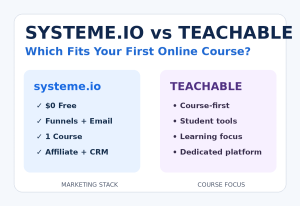 Systeme.io vs Teachable: Which Is Better for Selling Your First Online Course?
 Systeme.io Review: Is It Worth It for Beginners in 2026?